Random Content Based on Date Using PHP

Like most Web Designers, I like to put a small design credit link on the bottom of sites I build. I’ve got some work out of doing this in the past so it seems like a useful thing to do. Apparently there’s a reasonable amount of people out there that will have a look for a credit link if they like the look of the site and need one themselves. Trouble is, with 100’s of sites built and the same footer code added manually to each one, what if I wanted to change the credit text or link? I’d have to manually change it for every site!

Another thing to think about is the amount of websites I have of my own that could benefit from some good backlinks with good anchor text from clients sites. I’ve got one main site (this one!) but a whole pile of other ones that have a decent precence online that I can be contacted through, ie – my Twitter, Facebook & Linkedin accounts, other domains I own etc..

What I’ve done is add a small bit of PHP code to each client site footer that calls content from a single file on my own site/hosting. This means that if I want to change my footer link on 100’s of different sites, I can do it in just one place and they all get updated automatically! In that file I’ve got some more PHP code that shows different anchor text linking to my different websites based on what month of the year it is. Doing this automatically keeps the credit link fresh and dynamic and has the added benefit of showing you via Analytics which month/link was most effective in driving visitors to your sites.

I’m no PHP expert so the following code maybe easily improved upon by those who know more. If anyone has suggestions on how to improve, clean up or expand on this basic idea, please leave a comment below!

Here’s sample code for each website footer:
[php]<?php $reverb = file_get_contents(‘http://www.yourdomain.com/footer-credit.php&#8217;); echo $reverb; ?>[/php]

Here’s sample code for showing different content based on the month of the year:

[php]<?php
$d=date("M");
if ($d=="Jan") {
echo "site by <a href=’http://www.reverbstudios.ie’>Reverb Studios Design Leitrim</a>";
} elseif ($d=="Feb") {
echo "site by <a href=’http://www.reverbstudios.ie/web-design/>Reverb Studios Web Design</a>";
} elseif ($d=="Mar") {
echo "site by <a href=’http://www.webdesignleitrim.ie’>Web Design Leitrim</a>";
} elseif ($d=="Apr") {
echo "site by <a href=’http://twitter.com/reverbstudios’>Twitter.com/ReverbStudios</a>&quot;;
} elseif ($d=="May") {
echo "site by <a href=’http://www.facebook.com/ReverbStudiosDesign’>Facebook.com/ReverbStudiosDesig</a>&quot;;
} elseif ($d=="Jun") {
echo "site by <a href=’http://www.linkedin.com/in/reverbstudios’>Linkedin.com/ReverbStudios</a>&quot;;
} elseif ($d=="Jul") {
echo "site by <a href=’http://www.reverbstudios.ie/prices/’>Reverb Studios Design</a>";
} elseif ($d=="Aug") {
echo "site by <a href=’http://www.reverbstudios.ie/contact-me/’>Reverb Studios Digital Desig</a>";
} elseif ($d=="Sep") {
echo "site by <a href=’http://www.reverbstudios.ie/testimonials/’>Reverb Studios Multimedia</a>";
} elseif ($d=="Oct") {
echo "site by <a href=’http://www.reverbstudios.ie/blog/’>Reverb Studios IT</a>";
} elseif ($d=="Nov") {
echo "site by <a href=’http://www.reverbstudios.ie/recent-projects/’>Reverb Studios Leitrim</a>";
} elseif ($d=="Dec") {
echo "site by <a href=’http://www.reverbstudios.ie/latest-news/’>Wordpress Web Design</a>";
} else {
echo "site by <a href=’http://www.reverbstudios.ie’>Reverb Studios Design</a>";
}
?>[/php]

Credit to @barryflood for the Date idea.

Leon

Popular Ways to Extend Your WordPress Site

So you’ve had a basic WordPress site built for you (possibly by me!?) or put one up yourself and you’ve got your design in, pages, images and blog/news posts up and you’re pretty happy with how it all looks. Did you realise you can add to the core WordPress functionality by installing plugins to make it do almost anything you can imagine? For me, that remains probably the best feature of WordPress along with it’s ease of use.

Wordpress Plugins

So what extra things might you want WordPress to do?

Send Newsletters

Capturing email address from your website and building a database of contacts then keeping in touch with them or sending offers etc is an excellent way to market and this plugin is probably one of the most popular WordPress additions requested by my clients:

Reverbstudios.ie/706/wordpress-newsletter-plugin-review/

Sell Stuff

All business have something to sell. If it’s products then it makes sense to sell them off your own website. This plugin will do all you need including show categories, add postage, paypal and credit card payments etc..:

Reverbstudios.ie/868/wordpress-shopping-cart-plugin-review/

Capture Data & Details

It’s highly recommended that you have some kind of conversion form on your website, ie a form that gathers information from visitors either automatically (browser, operating system, referring site, etc..) or manually by asking them questions. For businesses that are service based these kind of forms can be made take a payment or deposit too:

Reverbstudios.ie/1787/gravity-forms-wordpress-form-plugin-review/

Contact me if you you’d like any of this functionality on your site.

Leon

Link to a Point in a youTube Video

Just spotted how to do this. Cool! I don’t know about other people but I’ve not got the patience to sit through more than a few minutes of online video so if I need to show someone a video but only want them to see one particular part of it, I can create a link that goes directly to that part.

Here’s a normal youTube video URL:

http://www.youtube.com/watch?v=XsP6uRJbeyg

And here’s a link to a  lovely string break 3 minutes in:

http://www.youtube.com/watch?v=XsP6uRJbeyg#t=3m1s

The syntax to stick on the end of your youTube link is “#t=3m1s“, phonetically, “Time=3 minutes and 1 second”. You can grab the URL of a point in a video a bit quicker by moving the Play Head to the required point, Right-clicking it and choosing “Copy video url at current time”.

Also, if you type in 3:01 in a youTube video comment, it automatically links it to that point in the video!

Live and learn.

How To Add Your Google + Profile URL & Image in Search Results

Google have just started recognising the ‘rel=author’ tag on sites which means you can use it to show your Google + profile photo and url on any google search results showing pages/posts from your site. I think it’s a cool thing because it kinda highlights your result among others..at least until everyone starts doing it! It also gives your result/business a personal edge or a bit of branding right in the results page:

Google+

Here’s how to set it up, not rocket science: Add the following line to the ‘Head’ section of your website html:

[html]<link rel="author" href="<a href="https://plus.google.com/xxx/posts">https://plus.google.com/xxx/posts</a>"/>%5B/html%5D

Where the ‘href’ url is the url to your Google + profile. Next, make sure you have a link pointing back to the site you’ve added this tag to, in your Google + profile. It should go in the About – ‘Other Profiles’ or ‘Contributor’ Section. Finally, make sure your Plus one’s are public in the Google + profile settings and that you have chosen a suitable Google + profile pic! You can test whether it’s set up right or not here – Rich snippet test. Leon

How To Create an Introduction Video for Your Website

You see them a lot on website home pages these days, the Video Introduction Monologue where some guy (or more frequently, cute girl) talks to you directly in a short video, often to introduce the company, website or product. The idea being that the friendly face and language of the company owner or employee will garner a little more trust in the visitor than the normal website textual content would.

I was asked how to go about creating these kind of videos by a mentoring client recently and I sighed and proceeded to talk about hiring cameramen, video editing & conversion, uploading, embedding etc..when in fact all you really need to do a basic one at least is a decent webcam with mic (or separate headset mic) and a youTube account.

Here’s how:

Create a free youTube account if you don’t already have one.

Click “Upload” in the top right corner.

On the following screen click “Record from webcam”.

youTube UploadOn the next screen you’ll have to allow youTube to connect to your webcam so tick “Allow” and close.

AllowNext just check the settings at the top of the webcam preview to pick your preferred audio device. Normally the built in webcam mic is too far from you to grab decent sound at a good volume so select your headset or other mic from the drop down list instead.

Mic Settings
Next, click the Record button center screen and have a play around to get a good position and sound level. Sound level is measured on the right so aim to get a good input but not in the red too much. Press stop when finished and you’ll be given 3 options Preview, Publish or Re-record. You just want to preview for the time being to see how it turned out and if all is well click Re-record to complete your video.

When you publish the final video you can easily grab the video embed code or URL off youTube and paste it into your wordpress site or web page to show to visitors. Remember, youTube is regarded as the second biggest search engine on the net so make sure you tag your created video with the right keywords while publishing.

Some Video Shooting tips:

Make sure lighting is decent in the room and that there’s not too much in the background of the shot to distract people. There’s nothing worse then a dingy, dark webcam video shot in a ‘busy’ bedroom. There’s connotations attached to that look that you’d rather not achieve!

Keep the video short. Attention span on the net is not what it use to be.

Be yourself, be real, be engaging, sell yourself.

Don’t speak in monotone!

Leon


Add a Surcharge Field to Gravity Forms to Cover Paypal Fees

Paypal remains probably the handiest way to pay for and get paid for products and services but having just done my taxes for last year, I can see that the fees I had to pay for accepting Paypal payments from clients are getting pretty significant. I’ve decided to ask people if they’d like to pay these fees or not rather than forcing it on them and I’m only asking for 50% of the fees to be paid considering both seller and buyer are benefiting from using Paypal. Fair?

The first couple of things that need to be said are these:

  1. Paypal may not like people adding surcharges to cover their fees. In fact it’s probably against their policy. I don’t know why because they would make more money.
  2. People paying for services and products may not like to see extra fees added on checkout.

Nevertheless! Here’s how to add a field that automatically calculates Paypal fees for a customer entered amount.

You’ll need a developer licence for Gravity Forms Wordpress forms plugin for this so you can grab their Paypal Add-on. A developer licence is well worth it for this excellent forms plugin. They have some other great add-ons too. See my review.

Step 1

Add a new gravity form with whatever basic informational fields you want the customer to fill out, typically Name, Phone, Email & Item just so you’ll know who’s paid and for what.

Step 2

Add 2 “Product” fields from the “Pricing Fields” menu, the first of which should be configured to take a user defined price as below. It can also be a set price as opposed to user defined:

The second Product field is the tricky one. Some maths skills are needed! This field needs to be configured as a Calculation from the “Field Type” drop down menu. In the “Formula” field I inserted the “Payment Amount” merge tag from the first Product field above. Then I added the rest of the formula to calculate the % fee as below. You’ll need to visit the Paypal Fees web page to see the exact fees in your country and for the monthly incoming Paypal volume you have personally. For me it’s 3.4% + 0.35 cents. Also remember that I’m dividing by 2 here because I’m only asking for clients to pay 50% of the fees. You can leave that out if you’re not as generous as me. Here’s the formula and setup screen:

(  ( {Payment Amount (Euros):11} * 3.4 / 100 ) +0.35 ) /2

Step 3

Add a “Total” pricing field at the end too just so people can transparently see how the fees were added.

Step 4 (Optional)

In my form, I’ve also added a “Radio Buttons” field from the Standard Fields menu which I’m using to ask the client whether they want to bother paying any of the fees or not. I don’t want to force extra payments on anyone but the addition of this field will help sort the nice clients from the not so nice ones maybe!? With this field added, you need to go into the advanced settings of the second “Surcharge” pricing field and turn on “Enable Conditional Logic” to only show the surcharge field if people have chosen “Yes” to paying the fees. See below:

Here’s a link to my form so you can see how it all comes together:

ReverbStudios.ie.Payments

Leon

How To Block Specific Google AdSense Ads

Thanks to Barry Flood for pointing out to me that you can filter or block certain ads or types of ad from appearing on your website via Google AdSense. I never presumed you could and was too lazy to look through the settings in my AdSense account! The reason this came to light is that the ads on this blog were showing content that could be deemed competitive, ie – I seen ads for website building software and companies that could take business away from me! Bit silly eh..

Anyway, here’s how you block ads:

Login to your Google AdSense account at www.google.com/adsense and click on the “Allow & Block Ads” tab at the top. Yeh, it’s pretty obvious, not sure how I missed it!

On the left under “Blocking Options” you can block ads in several different ways:

  • Advertiser URL’s – Input a list of web addresses you want to block.
  • General Categories – Block topics such as Health, Travel, etc…don’t go mad here!
  • Sensitive Categories – Similar to above but with topics such as Drugs, Religion, Sexual Health, etc..not illegal stuff but stuff that not everyone might find appropriate.
  • Ad Networks – These are known ‘Google Certified’ ad networks. You’d need to do a fair bit of research to know which of these to block so I just left them alone.

Google AdSense Block Ads

You’ll need to take a glance at the ad impressions and earnings for each category before you block it to make sure you’re not going to be blocking a great revenue stream but you may have to trade off at some stage. For example “Beauty & Personal Care” and “Hobbies & Leisure” were strong earners for me at about 34% each and I’d gladly have blocked them if it wasn’t for that as they’re not exactly relevant to my content and business. Conversely, the category I did block – “Internet Software & Goodies” is highly relevant but this is the category that kept throwing up competitor ads. It had only 4.2% earnings so I felt it was a safe, calculated gamble to block it.

Leon

How To Replace Your Car Key Fob Cheaply

Problem:

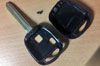
My Car key fob casing (Toyota Rav4) was cracking at the blade and about to die and the local Toyota dealer wanted to charge around €250 for a totally new key and transponder. I said it was just the casing that was broke and could they just replace that and he said no! Same story with the other dealers I tried.

Here’s my broken key with some bits of failed fixes including Sugru and Tape!:

Broken Key

Solution:

I reckoned there must be cheap replacement casings for sale somewhere so off I went to good ole eBay. eBay seller Goodtrade.Purple was selling this replacement casing and after a bit of careful reading and matching of Blade sizes, I bought a couple. Both my main key and replacement casings were cracked. They come in the below form with a blank blade that needs cutting:

Replacement Key Casing

I gingerly approached the local key cutting shop and asked if they could cut the new blank blade against my existing one and after a bit of head scratching they said they’d give it a go. I thought maybe they wouldn’t be able to get the fob into their machine because you can’t separate the blade from the casing but it cut fine. Next, I removed the Transponder unit from my old key and put it in the new case and screwed it back together.

The new key and replacement both worked perfectly with the car!

Total cost of replacement:

Casing,  Blade & Postage from the UK – €6.95
Key Cut – €5

SAVINGS: €238.05!!

Here’s my new key:

New Key

Leon

Add Multiple Google +1 Buttons to WordPress

It’s recently been announced that the number of +1’s your site receives might affect your Google page rank so it’s worth having a Google +1 button on your site.

The obvious way to add a single Google +1 button is to just use a WordPress Google +1 plugin but what if you want to keep plugin numbers down for performance reasons or want to add multiple instances of Google +1 to your site, all promoting different url’s, ie – one at the top of your home page for your main site url and one on individual blog posts? Well this is what I needed to do and found it wasn’t that easy! Here’s how I managed it:

Go to www.google.com/webmasters/+1/button and grab your button code, making sure to enter a target url for your main site, then paste it into your site template, taking care to paste the right bits in the right places. The following goes in your header.php file in the <head> section:

<!-- Place this render call where appropriate -->
<script type="text/javascript">
  window.___gcfg = {lang: 'en-GB'};

  (function() {
    var po = document.createElement('script'); po.type = 'text/javascript'; po.async = true;
    po.src = 'https://apis.google.com/js/plusone.js';
    var s = document.getElementsByTagName('script')[0]; s.parentNode.insertBefore(po, s);
  })();
</script>

And the following goes wherever you want the button to show, typically inside the header.php file somewhere after the opening <body> tag:

<!-- Place this tag where you want the +1 button to render -->
<g:plusone annotation="inline" href="http://www.reverbstudios.ie"></g:plusone>

Now, if you wanted to also have a button on each blog post, to specifically target that blog post url, you need to paste the above code into your single.php template file, somewhere inside the loop but this time change the url to “<?php the_permalink(); ?>”, ie:

<!-- Place this tag where you want the +1 button to render -->
<g:plusone annotation="inline" href="<?php the_permalink(); ?>"></g:plusone>

What this does is automatically grab the post url of the post your’re currently reading and allows it to be +1’d!

See the top left of this site and the share section just below this blog post’s title to see both buttons in action.

Leon