Switching From iPhone to Android

I’ve recently experienced a couple of switches from iPhone to Android with the purchase of a new Samsung Galaxy S II for me and a HTC Wildfire for my partner and one of my biggest worries beforehand was how we were going to get required data off the iPhone to the new Android devices, especially given Apple’s/iTune’s notorious inflexibility. A quick bit of research and a bit of jumping in at the deep end and everything was sorted fairly easily.

It’s worth noting that you can avoid a certain amount of hassle straight away if you were already syncing your iPhone with the likes of Google Apps which can sync Contacts, Email, Calendar, etc…

HTC WILDFIRE

HTC Wildfire S

Contacts

This was the first new phone to arrive and I was really impressed with the setup steps when first turning it on. The HTC prompted me to transfer stuff from my old phone via Bluetooth and even though iPhone’s useless Bluetooth can’t normally connect with ANYTHING, the HTC managed to pair with it and drag in all my partner’s contacts. But that’s all it took in unfortunately.

SMS/Texts

This turned out to be the trickiest one. We both had important texts we didn’t want to lose on our iPhones and were a bit stumped when we seen no obvious way of getting them onto the new phones. A bit of googling turned up this handy article Faked.org/isms2droid/ which explains how to locate your iPhone SMS backup file, convert it to XML and import it using the Android SMS Backup/Restore app.

SAMSUNG GALAXY S II

Samsung Galaxy S II

Contacts

Because this was my own phone and I was already syncing with my Google Apps account, setup was pretty damn easy. Pretty much the first screen you see when turning on the phone was the create or login to your Google account one and once I’d logged in, all my Contact, Calendar and Email information was synced with and added to the phone!

SMS/Texts

I had to go through the same process as for the HTC above to get my texts/SMS’s from the iPhone but I done it a lot quicker now that I was experienced! All texts and conversations were restored from the iPhone backup perfectly.

Media

The transfer of media such as Photos, Videos and iTunes Music was straightforward for both Android phones:

Photos

If you’ve been syncing iPhone photos to a particular folder on your computer then it’s a simple matter of connecting up the HTC via USB and just dragging them to the new phone. If you havn’t been syncing then you can just open the iPhone as a folder and copy the photos out of it then on to the HTC.

Music

Wasn’t sure whether the iPhone or iTunes would put some kind of protection on music downloaded from iTunes but it turns out it doesn’t. Simply locate your iTunes music folder on the computer and drag the music onto the HTC.

Conclusion

So the only thing we really lost from the iPhone were our apps but the ones we used most on are all available in the Android Marketplace, ie – Facebook, Twitter, Skype, Foursquare, etc..

PS – We’re both now delighted to be free from iPhone/iTunes limitations and be proud owners of 2 excellent next gen smart phones running on a much more refreshing and potentially much better Android OS.

Leon

 

Gravity Forms and WordPresss Custom Post Types

I’ve brushed by the problem of getting the Gravity Forms wordpress plugin to populate wordpress content a few times now and while it can handle basic post creation by default, with Title, Content, Images, Category, Tags, etc.. what if you need a front end form to create or populate a Custom Post Type and fill in the various bits of meta/taxonomy information that might be contained in that custom post type?

For one of my latest projects I’m building a property site and using an off the shelf template that comes with a custom post type called Listings which has contained within it custom fields and taxonomies such as:

  • Property Type,
  • No of Beds,
  • Location,
  • Price,
  • etc..

I figured initially that this should be easy enough but on researching found it wasn’t! Luckily the Gravity Forms + Custom Post Types plugin does pretty much all you need. Here’s how it works:

Install and activate the above plugin and go create a new Gravity Form as usual and add a new Title field from the ‘Post Fields’ section. This will be the title of the post and in my case, property name. Go into the advanced settings for that field and tick Save as Custom Post Type. The drop down box choice will list any custom post type created already. See below:

Custom Post

Next create either a drop down, multiple choice or checkbox field and go into the Advanced tab of the field settings and tick ‘Populate with a Taxonomy’, choosing your taxonomy from the resulting list. If you add a list of taxonomies to the custom post type in wordpress admin then these will be the values that populate that drop down/checkbox list on the front end when someone uses the form! See here:

Taxonomy

For this particular site I’m working on I can now have a client register an account, list a property (with ‘Pending’ status) and pay for the listing all through 1 form. Cool!

Leon

Photoshop Passport Template

I’ve just had to renew my own Irish passport and found the whole process way more difficult than it should have been. The trickiest bit was to do with the photos you need to include, paying attention to your position in the photo, it’s size, your demeanor, etc…mental! You can probably get one easy in a supermarket photo booth but I wasn’t sure it would conform to the specs and why pay if you can do it yourself!? You’ll get it exactly right and avoid a return/rejection if you use my template file below.

Passport

The file below conforms to the dimensions and layout as described in the photo guidelines section of the passport application document, available from your local post office. It will require a copy of Photoshop and some ability to use it of course.

Simply drag/resize a photo of yourself into my template within the guidelines and print actual size on A4 photo quality (glossy) paper.

Download Photoshop Passport Photo Template

Make a 3D Image in Photoshop

I was surprised to find out recently that making 3D Anaglyph images, ie – old style Stereoscopic, Red & Cyan as opposed to the modern Polarized type of effect used in the likes of Avatar, was really pretty straightforward and quick.

Here’s how:

  1. Get a proper camera, (not phone!) and take 2 images of any object from the same position using the viewfinder. One with each eye,
  2. Import both photos into Photoshop and copy and past the image taken with the right eye into the image taken with the left eye so that they both overlap exactly,
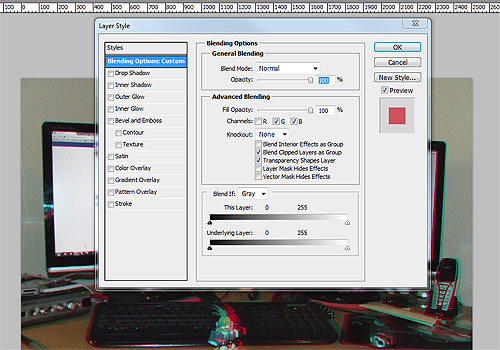
  3. Double click the Right eye layer to open up the Blending Options screen and turn off the Red Color channel under “Advanced Blending” as below:
  4. Blending Options
  5. Select the Left eye layer and use the Move tool to align the image to whichever Focal point you prefer to make that point the focus of attention.
  6. DONE!

Get hold of some 3D glasses and view the result! Here’s my effort:

3D Office

WordPress Optimization and Speed

I’ve been having problems with my sites for a while now on various different VPS web hosting servers. Essentially, I’m getting intermittent faults, the worst kind and hardest to diagnose nevermind fix! Basically all my sites can be running fine then for no reason and without me making any changes to any site, they become incredibly slow. The server and/or apache dies more often than I’d like it too aswell, requiring a manual server restart.

I decided to do a bit of proper research and fault finding this week and while I can’t say for sure everything is fixed now, as of this moment, everything seems fine. Here’s a few of the things I done to try optimize a couple of my biggest, most trafficked sites – both WordPress blogs.

Basic Optimization

  • Update WordPress itself to the most recent version,
  • Update all plugins,
  • Remove plugins that you don’t really need or which you can easily replicate the functions of by hardcoding, ie – Facebook Like Buttons,
  • Limit plugins that communicate with external sources, ie – Facebook boxes, Twitter feeds, etc..,
  • Only use plugins included in the WordPress.org database,
  • Only use plugins that are listed as 100% compatible with your WordPress version,
  • Keep images small and image numbers low,
  • Use HTTP Compression,
  • Use a Caching plugin like W3 or WP Super Cache,

Advanced Optimization

  • Database Queries tend to slow down a WordPress site so check your number by adding "<!-- <?php echo get_num_queries(); ?> queries. <?php timer_stop(1); ?> seconds. -->" to your code and checking the page source on load,
  • Debug your Queries by adding the Debug Queries plugin to see what the actual queries are and how long each one takes,
  • Optimize your WordPress tables via phpMyadmin if you have access to it. The WP DB Manager plugin does this too if not,
  • Delete database tables that have been left over by deactivated or deleted plugins. Be careful here!
  • Turn off post revisions by adding “define('WP_POST_REVISIONS', FALSE);" to your wp-config file,
  • Delete all comments marked as spam via sql query – DELETE FROM  wp_comments WHERE  comment_approved = 'spam';,
  • Clean orphaned or unused entries in the WP-options table using the Clean Options plugin. Be careful!
  • Raise the default WordPress memory limit of 32MB by adding define('WP_MEMORY_LIMIT', '64M'); to the wp-config file,

Finally, you can create a basic error log for your WordPress site by adding the following lines to the wp-config file:

@ini_set('log_errors','On');
@ini_set('display_errors','Off');
@ini_set('error_log','/path/to/wordpress/blog/php_error.log');

Here’s a great article on WordPress Database Optimization.

Good Luck.

Leon.

WordPress Help Menu Plugin

Just a quick, simple little plugin I developed based on some code I found on the net that adds a new menu in your WordPress admin called “Reverb Help”. Clicking on it’s subpages shows various, official WordPress resources & Video Tutorials. I hope that it can be of use to people struggling with WordPress (there can’t be that many, it’s fairly easy to use!) and give them a handy reference from within their own site/blog on how to do the most commonly done things with the excellent WordPress system.

Download the plugin:

WordPress Help Menu Plugin

Installation Instructions:

Download the plugin zip file above then go to ‘Plugins – Add New’ in your wordpress admin. Click ‘Upload’ under ‘Install Plugins’ at the top of the screen and locate the downloaded zip file. WordPress will upload the zip file and present you with ‘Activation’ links. Click ‘Activate’ and you’re done! You’ll see the new “Reverb Help” menu on the top left.

Leon.

Get Facebook Page Notifications

At Last!!!! I’ve always thought it was mind boggling that Facebook didn’t have some sort of email notification system for when someone posts or comments on your Page wall or Page photos. Would love to know the reason why they’ve not added it? I smell a rat! Business Facebook page notifications should be essential these days so companies can keep an eye on customer relations and respond to questions and feedback posted.

I’ve just found a Facebook app that does the job perfectly well. It’s called PageNotifier. Click that link and add the application to your Facebook account then configure it as below:

Facebook Page Notifier

You can get the Page ID value by visiting your own page and looking in the address bar or if you’ve got a tidy URL you can click the ‘Edit Page’ link then copy the ID number from the address bar that way.

You can add multiple page notifications and on first use, PageNotifier scans your pages every 15 minutes. After 24 hours it only scans once a day unless you subscribe to an affordable monthly payment plan but I think once a day is probably enough. It’s certainly better than the ‘never scan’ default Facebook option!

The app currently notifies you of Wall posts, Comments, and Photo, Album & Video Comments. Here’s what an email notification looks like:

Facebook Page Notifier Email

Spread the word..PageNotifier

Leon.

SEO Heading Structure for your Site/Blog

I’ve just recently re-coded my main site and blog to take Heading Tags into account. I thought they were added okish to begin with but an article from WordPress guru Yoast de Valk made me have another look. I’d like to try paraphrase his article here and simplify it so it’s a bit easier to digest both for me and for you.

Basically, you can endear yourself to Google and the other search engines a little bit more if you write your markup/code semantically which basically means being tidy, adding code hints and most importantly perhaps, adding the correct Formatting and Heading tags to the content you want highlighted the most/least. The idea is to make the most important keywords on the page your H1 heading, the next most important H2, and so on so when the Google bot visits your page it can then see at a glance so to speak, the most important areas and hopefully index same.

There should be only one H1 tag on a page and this should be your Page Title, Blog Title, Business name, etc..Your H2’s might be the titles of the individual sections on the page or perhaps your Article titles if you have a Blog. H3’s would be Sub-headings, H4′ s might be sidebar headings, etc..etc..

It’s important to style your headings accordingly so people too (not just Google bots!) can easily scan through longer pages of text and pick out the important parts but also that the heading tags actually contain valuable keywords. There’s no point having headings if you don’t follow both rules. If you do it correctly your page will be nicely ‘outlined’ for both search engines and real people.

Here’s a couple of screenshots from my main site and blog to explain things better and show how I’ve personally set things up.

Main Site:

Main Site Headings

Blog Headings:

Blog Headings

Leon.

Secure WordPress Using Authentication Keys

Here’s how to better secure your WordPress installation by adding some unique authentication keys to the wp-config.php file. You’ll find this file in the root WordPress directory and it’s a file that governs some of the main and most important settings in any WordPress installation. Without it WordPress can’t function. Spammers and hackers know this and it’s one of the more attacked files so here’s how to secure it a bit.

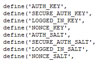
Open up wp-config.php in a HTML editor and look for the following set of definitions:

define(‘AUTH_KEY’,         ‘put your unique phrase here’);
define(‘SECURE_AUTH_KEY’,  ‘put your unique phrase here’);
define(‘LOGGED_IN_KEY’,    ‘put your unique phrase here’);
define(‘NONCE_KEY’,        ‘put your unique phrase here’);
define(‘AUTH_SALT’,        ‘put your unique phrase here’);
define(‘SECURE_AUTH_SALT’, ‘put your unique phrase here’);
define(‘LOGGED_IN_SALT’,   ‘put your unique phrase here’);
define(‘NONCE_SALT’,       ‘put your unique phrase here’);

Go to the official WordPress Secret Key Generator https://api.wordpress.org/secret-key/1.1/salt/ and refresh to generate some random secret keys. Carefully copy and paste the given key values into the corresponding definitions above, replacing put your unique phrase here.

You can change these values as often as you like without consequence.

Leon.