Secure WordPress Using Authentication Keys

Here’s how to better secure your WordPress installation by adding some unique authentication keys to the wp-config.php file. You’ll find this file in the root WordPress directory and it’s a file that governs some of the main and most important settings in any WordPress installation. Without it WordPress can’t function. Spammers and hackers know this and it’s one of the more attacked files so here’s how to secure it a bit.

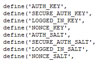
Open up wp-config.php in a HTML editor and look for the following set of definitions:

define(‘AUTH_KEY’,         ‘put your unique phrase here’);
define(‘SECURE_AUTH_KEY’,  ‘put your unique phrase here’);
define(‘LOGGED_IN_KEY’,    ‘put your unique phrase here’);
define(‘NONCE_KEY’,        ‘put your unique phrase here’);
define(‘AUTH_SALT’,        ‘put your unique phrase here’);
define(‘SECURE_AUTH_SALT’, ‘put your unique phrase here’);
define(‘LOGGED_IN_SALT’,   ‘put your unique phrase here’);
define(‘NONCE_SALT’,       ‘put your unique phrase here’);

Go to the official WordPress Secret Key Generator https://api.wordpress.org/secret-key/1.1/salt/ and refresh to generate some random secret keys. Carefully copy and paste the given key values into the corresponding definitions above, replacing put your unique phrase here.

You can change these values as often as you like without consequence.

Leon.

Hide Number of Comments if None in WordPress

Just a quick one to tidy up your blog a little and make it a little less negative! It’s quite common to see a list of posts on a WordPress blog with meta info underneath each one displaying things like Post Time, Post Category, Author and the number of Comments the article has. For smaller blogs, there probably wont be too many comments left so you’ll see “No Comments” or “0 Comments” under a lot of the posts. I’ve always thought this looked a little sad on my own blog. Like, here I am slaving away on these excellent and informative articles and no one is reading or commenting on them!? Here’s a quick code edit to hide the “No Comments” text if there are none but show the number of comments and link to them if there are any.

Open the index.php file for your theme in a HTML editor and look for a line similar to this:

<?php comments_popup_link(‘0 Comments’, ‘1 Comment’, ‘% Comments ‘); ?>

Change this to:

<?php comments_popup_link(”, ‘1 Comment’, ‘% Comments ‘); ?>

You’re just deleting any text that should be displayed when there are no comments so if there are none, then nothing will be shown. Geddit!?

You might need to edit this line in several other template files also such as Archive.php, Category.php, Search.php, Tag.php and anywhere else comment numbers are displayed.

Leon.

Add a Contact Form to Facebook

I bet you’re like me and thought this should have been fairly easy right!? Wrong. Unless I missed something fairly obvious, there doesn’t seem to be an easy way to do it without the help of either a web developer/FBML expert or external apps/sites. The first obvious thing I tried was searching for Facebook Form apps but nothing turned up. Secondly, I tried pasting some of the code from my own site forms including offsite code from my Blog Newsletter (which normally works anywhere) into an FBML app tab and presumably due to FBML or Facebook restrictions, that was rendered useless.

Facebook Contact Form

After some Google research, I came upon an excellent and mostly free form building site called JotForm.com which presents you with an easy to use WYSIWYG form builder with all the options you could ever need. The most important option I found at the end was that you can generate Facebook specific FBML code that is guaranteed to work in your FBML app tab. Jotform doesn’t stick it’s logos all over your form, in fact, there’s no clue it’s there at all through the whole process. It also redirects any data entered to an email address of your choice.

I tried it and here are the results after very little time messing around:

www.facebook.com/ReverbStudiosDesign?v=app_4949752878

Batch Upload to Dropbox via WordPress

I’m currently building a site for a local Pharmacy who would like to have the ability to allow customers to upload photos to be developed via an online form on their site. The catch is, they would prefer to have the files go to their Dropbox (File sharing/storage site) folder for easy processing. I done some searching for an off the shelf WordPress plugin and this one came closest but unfortunately, didn’t have batch capability and seems slightly buggy – WordPress.org/extend/plugins/dropbox-plugin.

I then got to wondering if it was possible to Email pics to Dropbox and found a few sites/apps that can do it well. This one seemed best – SendToDropbox.com.

So, armed with the above knowledge, here’s what I done:

Contact Form 7

This is one of the most popular FREE form plugins for wordpress and the current version includes the ability to add File Upload fields to a form. As many as you want. I setup a new form with standard questions like Name, Email, etc..and included a few upload file fields with specifications as to File Type, File Size, etc.. I then pasted in the automatically generated email address from SendToDropbox.com in the “To” field. Contact Form 7 also has the option to send the results of the form submission to a second email address and I setup a duplicate of the first email to go to the proper contact email address of the website, minus the file attachments, just so the website admin would get notification of newly uploaded files. Of course, the Dropbox PC software also alerts you straight away when new files are added to your folder. See below for Contact Form 7 settings:

Contact Form 7

SendToDropBox.com

This is a simple but cool site that connects to your Dropbox account and provides a custom email address that you can send emails and file attachments to. It also has a copule of extra features that process emails received such as: Automatic Unzipping, Email Content Inclusion and control over Dropbox Folder Names/Trees for emailed files, ie – files uploaded in this way can be added to folders named by Date, Email Address, Subject, etc..handy for keeping thigs organised and finding customers uploaded files! See below:

Send To Dropbox

Result

The end result is a normal looking contact form on the customers site that allows basic personal info to be uploaded to Dropbox along with files and photos. The website admin gets instant notification of new files added to his Dropbox account as well as email notifaction of the customer’s details. Nice!

Of course, it can be even simpler. If you just add an email address to the site like Upload@SiteName.com and have that forward on to the custom SendToDropbox email address then people can use the methods they already know for sending emails and attaching files and it will work just as good. I personally think it’s best and more professional to use the form method but perhaps a choice can be given.

Leon.
Fix Your Facebook Like & Recommend Buttons

I’ve rewritten this article after ‘proper’ researching and realising how Facebook Like and Recommend buttons ACTUALLY work! The original article was prompted by Channelship pointing out that there seemed to be a difference between clicking Like V’s Recommend, ie – clicking Like only posted a tiny link to your profile page whereas clicking Recommend seemed to publish the link to your wall resulting in way more exposure.

Some background:

As some of you may know, Facebook have relatively recently rolled out an external “Like” system whereby content outside of the Facebook site itself can have Like buttons. Straight away tons of sites (this one included) added the Like functionality through embedding code manually or using plugins. I have personally used the FB Like WordPress plugin for this blog and find it works well but here’s the manual code for your self-hosted WordPress blog if you prefer. It should be pasted in your “single.php” theme file ideally:

http://www.facebook.com/plugins/like.php?href=?phpechourlencode(get_permalink($post-ID));?&layout=standard&show_faces=false&width=450&action=like&colorscheme=light

Facebook Like

Check your code:

What I realised is that it makes no difference whether you use the Like or Recommend verb for your button. The important thing is to make sure that you either use the XFBML version of the button code or if using the IFRAME version, make sure to use the “Standard” layout with at least 450px width. Doing it either of these ways ensures that people will be given the option of leaving a comment and it’s this comment that ensures the article link goes on your wall. All is explained in this paragraph from the Facebook manual code link below:

When will users have the option to add a comment to the like?

If you are using the XFBML version of the Like button, user’s will always have the option to add an optional comment to the like. If you are using the Iframe version, users will have the option to add a comment only if you are using the ‘standard’ layout with a width of at least 450 px. If users do add a comment, the story published back to Facebook is given more prominence.

Get manual code:

Here’s the link to get Recommend/Like button code for your site or static page. The link also has some important information about the distinction between Like and Recommend and leaving comments:

http://developers.facebook.com/docs/reference/plugins/like

Here’s the manual code again for your self-hosted WordPress site:

http://www.facebook.com/plugins/like.php?href=?phpechourlencode(get_permalink($post-ID));?&layout=standard&show_faces=false&width=450&action=like&colorscheme=light

Since Liking/Recommending in this way is akin to ‘Sharing’ and to avoid the ambiguity between Like & Recommend, here’s a link to a decent WordPress Facebook Share plugin:

http://wordpress.org/extend/plugins/share-on-facebook/

Conclusion:

It has already been proven via stats that bloggers have started to get a lot more traffic after installing Like buttons so make sure you have yours!

PS – Please “Like” this article if for no other reason than to see how it works!

Leon.

Crazy BP Photoshop Twitpic Stats

Twitpic is a Twitter related service for sharing photos via Twitter in real time and is normally included in the likes of Phone and PC Twitter clients by default. As you send out a tweet, you can attach a picture from your PC or Phone camera and the application will automatically embed a Twitpic link so your followers can view the picture. One of the best things about Twitpic is the stats it gives on how many people have viewed your pic and while I suspect they are not terribly accurate (Simply refreshing adds hits!) and possibly count search robot visits, etc..it’s still a good, rough indication of viewer numbers.

Most of the pics I post to Twitpic go out on Facebook too and I get on average about 30 to 40 hits, however a recent upload went totally off the scale! Readers might have heard about the recent controversy involving British Petroleum (BP) when they released a poorly Photoshopped (edited) image to the media depicting a BP monitoring room where workers were keeping an eye on the oil leak. The image was edited to make it look like they were a little busier than they actually were but it wasn’t a great job!

I spotted a link from Wired magazine on Twitter asking for members of the design community to have a go at altering the original BP photo for the laugh and to see if they could do a better job than the botched BP one so I gave it a bash, seeing a good oportunity to get my Photoshop skills some coverage and maybe get some work in considering the Twitpic links to my main Twitter account with all my business info and web links attached!

Here’s the result below depicting some ‘alternative/lighter viewing’ in the BP control room and here’s my Twitpic with stats (currently 17,864 hits):

BP

My Social Media Routes

I’m not sure I’m doing a great job lately answering the often asked question of how exactly to go about EASILY ‘publishing’ content on Social Media Networks so I’ve decided to try to visualise here how I personally do it and make it easier for others as well as myself to understand!

Essentialy I have 2 main sources of content, this Blog and Twitter. It’s rare that I would post content directly in any other network. From my blog, posts go out to all the other networks and indeed Twitter but I also microblog from Twitter directly. Doing things this way, ie – only creating content in 1 or 2 places max but routing that content to multiple different places, is a fantastic and efficient method of having an active precence on the main social networking sites without the hassle of manually going in and creating content on them all individually.

I find using Dlvr.it a great help in routing my content but it relies on your main source having an RSS feed.

I believe these methods or routes are fairly common for most active networkers right now:

Social Media Routes

Ray Manzarek – The Doors Review

Anyone who knows me knows The Doors are (or were) my favourite band. I’ve got all the albums, T-shirts, read all the books, visited Jim’s grave, been in a Doors cover band and even got a tattoo of Jim Morrison on my arm! So I guess this gig like the previous 2 Doors gigs I’d seen could never have lived up to my expectations or memories, especially without Jim and Densmore. Their current tour seems to have been planned to coincide with the new Doors movie “When You’re Strange” which I’ve yet to see..

After a long, meandering (yeh, we got lost) walk to the new Grand Canal Theatre in Dublins refurbished docklands, we met with old friends from our gigging days and fellow members of our Doors Cover band “The End” bought a few ridiculously overpriced drinks and sat down in the very plush theatre to anticipate what promised to be something different – the Doors music accompanied by a 50 piece strong orchestra! I had a couple of well liked classical recordings featuring both Nigel Kennedy and George Winston so I knew it could work but it didn’t on this occasion.

About 10 seconds into the first song “Love Me Two Times” I turned to my friend and said, “this is going to be a  long night”!I think maybe the playing of both Manzarek, Krieger and the rest of the band and the orchestra was accomplished but either the sound engineer, theatre designer or booking agent should be shot. For nearly the entire gig, except for parts where the band played quietly or not at all, I couldn’t hear the orchestra one bit. Couldn’t pick out the strings, wind, timpani, nothing…Manzarek’s keyboard and Krieger’s guitar hurt my ears and the stand in lead singer who was way too young and fit looking compared to the other old rockers, was just a screamer and regularly cocked up songs including one memorable occasion when he fell over a monitor!

The song choices saved the nght a little bit with some of the more obsure Doors songs getting an outing for once with songs from all 6 Doors studios albums. It seemed like a totally different gig after the interval, still with sound problems but the audience came to life dancing and singing along, with a little element of anarchy, Jim would have approved! I suspect some drugs were consumed during the break!

I’m still glad I went if only to see 2 of the surviving members of one of the world’s greatest and most influential rock bands but I’m done now..

Leon..

http://rcm-uk.amazon.co.uk/e/cm?lt1=_blank&bc1=000000&IS2=1&bg1=000000&fc1=CCCCCC&lc1=FFFFFF&t=leonswebsite-21&o=2&p=8&l=as1&m=amazon&f=ifr&asins=B001LBCLGS

Here’s a video of the intro song, “Love Me 2 Times”:

Here’s some photos: