Anti Spam Questions Your Spam Bot Can’t Answer

I had the difficult experience recently of having to try find a way to block spam on a phpBB forum website. Nothing seemed to stop the wave of spambot user registrations. I tried messing with the default ‘Spambot Countermeasures’ settings that come with the latest version of phpBB including choosing different catpcha complexities, sizes, shapes etc..to the point where I couldn’t even read the codes myself but still they came! I also tried different spam plugins, captchas, etc but nothing seemed to work. I eventually settled on a Question & Answer system thinking that an automated spambot couldn’t possibly answer a question. But guess what!? They can now..

I happened to mention on Twitter that spam bots seemed to be able to answer questions these days and Rahber replied and said that they can only answer Googleable questions. In fairness this is mentioned on the configure screen for the Q & A spambot countermeasures plugin, which I never read!:

These questions should be easy for your target audience to answer but beyond the ability of a bot capable of running a Google™ search.

What this basically means is that a bot can probably answer a question like “What is 2 + 2” because Google can answer this too but they can’t answer a question like “What is the address of this website” which requires a bit of thinking rather then searching.

Here’s the list of questions I’ve put in for the time being which seems to be working, at least until the bots become self-aware. Hopefully, odd as some of them are, they won’t fool too many humans!

The larger the list the better:

  • What is the address of this website? 
  • What are the last 2 words in this question? 
  • What colour is a blue apple? 
  • What size is a ‘big’ dog? 
  • If a piece of string is 1 foot long, how long is it? 
  • What is the very last letter or symbol in this question? 
  • How many legs has a 3 legged spider? 
  • How many strings has a 9 string guitar? 
  • My dog is a spaniel, what breed is he?

Leon

WordPress Gravity Forms Plugin Case Study

The WordPress Gravity Forms plugin for constructing complex forms easily on WordPress based sites has been my forms plugin of choice for a few years now ever since I graduated from the clunky and under-powered Contact Forms 7. The value of Gravity forms was highlighted to me on a recent job when I had to rebuild an existing old site with WordPress. The only catch on an otherwise straightforward project was that the client needed to keep his elaborate Quote form.

This quote form basically asked the website visitor for the number of windows in their premises and the dimensions of each one before supplying a quote live on the form page and for 3 different styles of shutter! It also gave quotes for optional extras for each style… Finally the visitor had the choice of emailing the whole quote to themselves. A lot of dynamic field creation based on user choices and some live calculating to be done too. Lots to do!!

I knew the power of Gravity Forms and was kinda confident but it turned out to be a big job that needed all of the plugins power and some revisiting of maths formulas from my school days! I also needed to contact Gravity Forms support for advice and as usual they were quick and helpful. Kudos to Rob there.

Here’s what I needed to do:

Inches to Millimeters Conversion

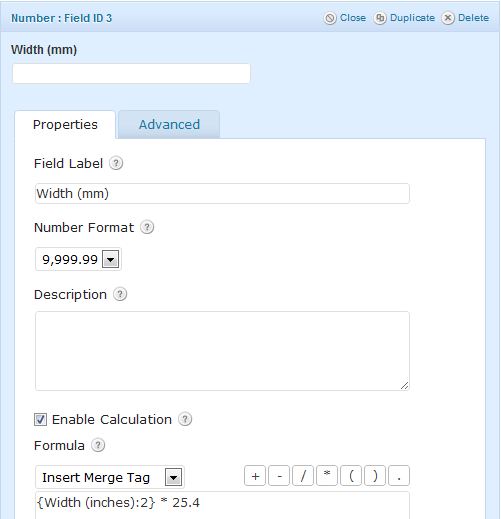
My client needed dimensions in (mm) so the form needed to provide a way for visitors to easily convert their inch measurements if that’s all they had. I added a converter which was simply a ‘number’ field which allowed inputting of inches then another corresponding number field that automatically calculated the (mm) as below. I also added a Radio field above this that asked whether people needed help converting or not and if they did, only then would the converter show. This was made possible by Gravity Forms’ excellent ‘Conditional Logic’ function:

conversion

Number of Windows

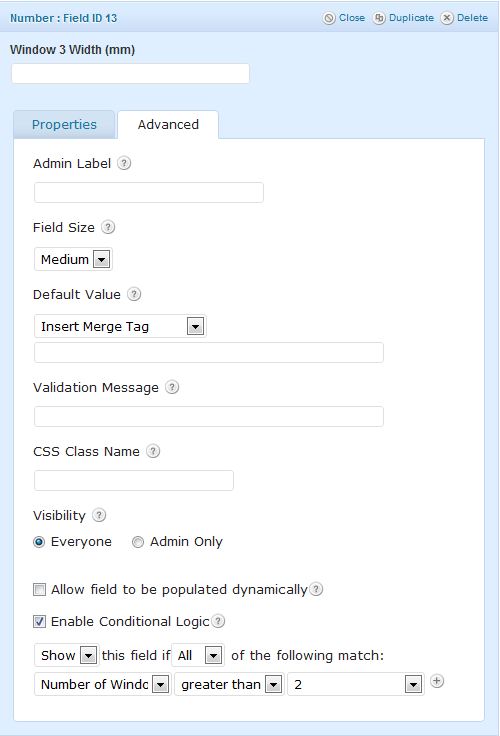
The visitor can pick their amount of windows from a drop down list. That’s the easy bit. But this form had to then dynamically create both Width & Height fields for whatever number they chose. I achieved this using a pile of number fields and some more Conditional Logic. Basically, show 3 width & height number fields if the number of windows chosen is greater than 2, etc.. Here’s an example:

window-number

The Main Quote

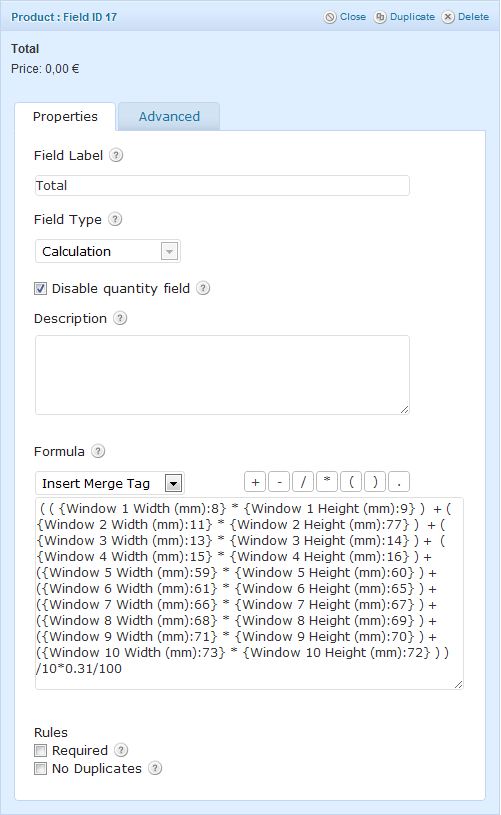
After gathering all the window dimensions, it’s time to provide the total of the quote, live on the page. For this I used a Gravity Form Product Pricing field with Field Type = ‘Calculation’ which basically takes all the window dimensions and multiplies them together then ads each window area then divides by 10, multiplies by a pricing unit and divides the whole lot by 100 to get the quote in euros! Same process for the other style windows. See below and take special note of the length of that Formula box:

total

Extras Calculation

There were some extras offered on the main quote above. I done that by adding another Pricing field and doing something similar to the above. It takes the total from above and multiplies it by a percentage pricing unit to give the additional extra amount.

Email Quote

This was the final and easiest bit. Back to simple form functions and asking for basic visitor details, ie – name, email etc so that the quote details could be sent to the visitor’s email address.

Notifications

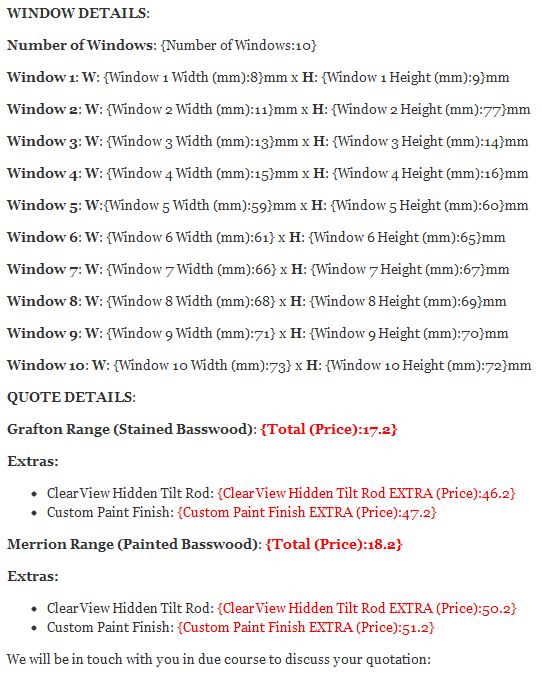
Normally I don’t bother formatting the Gravity Form notification emails. The default ‘All Fields’ option is usually adequate but this lengthy form required a bit of attention to detail. Both the visitor and client needed to get the quote results in a tidy email they could easily refer to and understand and the default notification options just didn’t cut it. See below for the visitor’s notification format I came up with using headings and merge fields:

notification

The final live Quote Form is available to view here for anyone interested in seeing it in action:

www.Shutters.ie

Leon

How To Boost Your WiFi Signal

Just a quick post on some of the simple things you can do to boost the WiFi signal around your house if it’s not quite reaching some parts:

Look at your equipment

Are your router and wireless receivers up to date? I gained a massive amount of extra coverage simply by getting a new MiFi dongle router from 3 and a couple of new WiFi adapters all of which use the latest Wireless N (802.11n) specification which is stronger and faster than the 802.11b or g you might already have.

Re-position your router

Try to avoid placing your router in a corner or in some position where it’s signal might be blocked by obstacles or interfered with by competing wireless signals, ie cordless phones, tv senders, etc..Place it centrally in the house to have the best chance of covering everywhere. A high position is good too. I’ve put mine in the attic for maximum height and also because there are less walls there, none in fact! The signal then only has to go through the ceiling which is a lot thinner then walls.

Tip: if you use mobile broadband and know where your local mast is, you may have to trade off between WiFi reach and best signal/broadband speed. Placing your mobile router in a position in the house nearest the mast will increase it’s speed and signal but you might lose WiFi at the other end of the house.

Router

Edit your router settings

You’ll have a control panel or program to manage your router or adapter settings, one thing you can do is to look for a “TX” settings page and change the values here. TX is the transmit power of your router and they are normally set quite low from the factory. A good setting seems to be about 70mW. Don;t go too high here or you’ll burn your router! It’s a bit like overclocking a cpu.

If you suspect interference from another wireless device or neighbour’s router even you can try changing your WiFi channel. 6 is normally the default so try another few and re-measure each time. Here’s a handy browser tool to help you chose the best channel –http://tools.meraki.com/stumbler#q=

Tip: If you live in the country like I do with no-one around you, you might consider turning off WiFi encryption/protection and leave it open. Open networks are faster.

Repeaters

You could buy a repeater and use it to bounce your existing signal further or re-commission an old router and convert it to a repeater by re-flashing the firmware with DD-WRT.

Other

Here’s a few funky DIY boosting projects you could try too:

http://lifehacker.com/296367/boost-your-wireless-signal-with-a-homemade-wifi-extender

http://lifehacker.com/5053796/boost-your-wi+fi-signal-with-cooking-strainer

Leon

Using the WordPress Plugin SVN Repository. Simply!

I’ve just managed to get my first WordPress plugin approved and added to the official WordPress plugin directory which is cool for me. It’s nothing major, mainly something to help my own clients but useful for anyone who uses WordPress and finds it hard to do some of the most common functions. You can view/download it below. Please rate it!:

http://wordpress.org/extend/plugins/help-menu/

Now simple as it is in function, it was no easy feat getting the plugin written, approved and added, with plenty of standards to adhere to and processes to be learned. For example I found out that you can’t import or host content on your own site that’s part of a plugin. You need to include all files in the plugin folder. I was hotlinking to files on my own hosting!

The trickiest part by far was figuring out how to upload the files to WordPress. They have a complex system for doing that called SVN/Subversion which is a version control system. The official WordPress help on how to manage this side of things is poor. They expect you to use command line to get it done which I’ve no clue about. After some googling and reading of WordPress support pages, I found a program called TortoiseSVN which has a graphical user interface. Much handier to use. Here’s how:

  1. After downloading and installing TortoiseSVN, create a folder on your computer to house your plugin files. I called mine SVN.
  2. TortoiseSVN is installed as Windows shell extension so there’s no program to run as such, it’s all right-click based. If you right-click on the SVN folder you created above and choose “Create Repository Here” you can get everything set up automatically.
  3. Once you’ve done that if you again right-click on the SVN folder and choose “SVN Checkout” you’ll be able to download the typical wordpress plugin folder structure created for you when the plugin was approved which comprises of 3 folders – Branches, Tags and Trunk. This checkout process will ask for the url to your plugins repository which will have been emailed to you on approval. Mine looks like this – http://plugins.svn.wordpress.org/help-menu/
  4. You can now add your plugin files (locally) to the newly created sub folder in the SVN folder which will me named according to your plugin name. Mine is “help-menu”. The plugin files (not folder) go directly in the “trunk” folder and a copy of them should go in a sub folder of “Tags” named with your plugin version, “1.0” in my case.
  5. Once you’ve added the plugin files you can now upload them to WordPress by right-clicking the plugin folder in SVN and choosing “SVN Commit”. You’ll be asked for a username and password at this stage so put in your WordPress.org login details.
  6. That’s pretty much it. The WordPress SVN should auto-update in a few minutes and your plugin will be live and ready to download!

Resources:

Using Subversion with the WordPress Plugins Directory
http://wordpress.org/extend/plugins/about/svn/

FAQ about the WordPress Plugins Directory
http://wordpress.org/extend/plugins/about/faq/

WordPress Plugins Directory readme.txt standard
http://wordpress.org/extend/plugins/about/readme.txt

readme.txt validator:
http://wordpress.org/extend/plugins/about/validator/

Leon

Avoid Affiliate Link Penalties

Some quick and simple tips on how to at least try and avoid getting penalised by the search engines for selling links on your site. None of them allow it but some of us, including me like to try and make some income out of doing a bit of this on our otherwise useful and totally legitimate blogs, right!? Why should we be penalised?

Nofollow

Ad the rel=”nofollow” tag to all external affiliate links either manually or by using an automated WordPress plugin like Pretty Link  or one that will do it sitewide, individually or on a per category basis. For example, most of my affiliate links are in my “Reviews” category. Having nofollow on affiliate links should prevent Google from following them and stop you leaking page rank.

Redirect

Use a redirection or url cloaking wordpress plugin like Pretty Link to create your own url visible as just another link to your own site that when clicked, redirects to the proper affiliate link. This also has the effect of hiding the fact that your url is affiliate to real people who might be wary of such things. If you’re using this method then it might be wise to exclude the redirection script or folder from search engines via Robots.txt.

Too Much

Don’t totally fill your site with affiliate links, just the odd one here and there and make sure you have a good pile of relevant, honest content on it too to balance things out!

Leon

Show Product Dimensions in WooCommerce

For some strange reason the WooCommerce WordPress e-commerce plugin has options in the product admin to add a product’s Weight and Dimensions but then doesn’t show these values on the front end like some might expect. Not 100% sure if it’s a theme clash or WooCommerce bug/oversight but WooCommerce told me there’s a workaround involving product attributes. I couldn’t get this working however.

Here’s what does work though. To show product dimensions on archive pages, add the following code to your theme’s functions.php file or in a new wordpress plugin:

[php]add_action( ‘woocommerce_after_shop_loop_item_title’, ‘cj_show_dimensions’, 9 );

function cj_show_dimensions() {
global $product;
$dimensions = $product->get_dimensions();

if ( ! empty( $dimensions ) ) {
echo ‘<span class="dimensions">’ . $dimensions . ‘</span>’;
}
}[/php]

You can change the “get_dimensions” to “get_weight” if you want to show a products weight instead or additionally in a new function.

NOTE: The above code will show dimensions on archive pages like Categories, Recently Added Products, etc. If you want to show it on single product details pages, there are other WooCommerce hooks but the ones I tried wouldn’t work with my theme. If you don’t mind editing your theme files directly, adding something like this to the template file that shows the individual products, something like ‘single-product.php’, should work too:

[php]
<div class="dimensions">
<strong>Dimensions</strong>: <!–?php echo $_product—>get_dimensions(); ?>
</div>
[/php]

Don’t forget to add a .dimensions class to your theme’s css file to style the results if required.

Take Advantage of Content Scraping

Firstly, a definition of “Content Scraping”. My own:

Content Scraping is the process whereby your website content is copied, usually via RSS feed pulling, and re-published at another URL, usually for financial gain.

Secondly, an admission. I currently engage in some content scraping myself but completely for the right reasons, ie – local resource creation and with no ads plastered all over the place. I also provide credit and back links to the original sites.

So what’s the best way to deal with scrapers who steal your content for all the wrong reasons? Most would say, search for exact copies of your content or post titles in Google to find scraped articles then contact the site owner to have it removed. There are technical ways you can block scrapers too but my favourite idea is to use the scrapers for your own benefit. Here’s how.

Internal Linking

While writing posts, simply include a few ‘key worded’ links to other pages on your own site. When your content is scraped, so too will be the internal links so the scraping site will automatically give you some great key word back links and real readers will be pushed back to your site too. SEO benefits all around!

Affiliate  Links

If you are an affiliate marketer, add some affiliate links in your post content and if those links are clicked on the scraping site, you’ll earn dosh!

RSS Manipulation

Since your RSS feed is probably the means by which your content is scraped, why not edit your feed layout to include links back to your site or include affiliate or ad banners? This is easy to do if you use the WordPress SEO plugin.

Leon

TP For Your Bunghole?

My Beavis/Cornholio, T-shirt over the head, “TP for my bunghole” impersonation is legendary at this stage so I thought I’d create a jar of virtual “TP Cream” in Photoshop for the crack (pardon the pun). I started out with the following assets:

  1. A nice Hi-res jar of cream image from sxc.hu,
  2. A decent head shot of the man himself “Beavis” from Google images,
  3. Photoshop CS6.

I cut the original jar image below out of it’s background just so I could create my own jar reflections, shadows and background colour:

tp-before

Next I used the Pen tool to draw the shape of a jar label and the star shape around Beavis’s head both of which I added an orange stroke effect to. I cut Beavis out of his background image and pasted him onto the label then used the Transform tool to get his size and perspective right’ish. I dragged in Beavis again and manoeuvred him on to the jar lid with the Transform tool again then set his layer to Overlay to make him fit in better.

Next I drew a path with the Pen tool that followed the shape of the label and added “TP For Your Bunghole” along it. I used the dreaded Comic Sans font but it seemed appropriate for this job!?

Finally, I added a bit of manual darkening over the right side of the added graphics using a very opaque and soft black brush, just to mirror the jar darkness on that side. I also used the colour replacement tool to make the cream inside the jar a little less pinky and more browny/orangey to match the colour scheme and topic!

Here’s the final effort:

TP for your Bunghole


Leon.

PS – this cream is fictitious, I’m not selling any before you ask!


How To Add an SPF Record in Cpanel

Spent quite a bit of time Googling around for an answer to this but couldn’t find an article that described it properly anywhere. I was having a bit of trouble with “undelivered mail” email spam, ie – people were using my domain to send spam emails to other people but the emails were bouncing back to me when no inbox was found. Adding an SPF record to your domain tells other email clients that your domain is a little bit more trustworthy and can also help avoid your legitimate emails going into other people’s spam.

I Googled how to setup an SPF record manually in WHM but found conflicting results on the correct syntax to use but then I realised that there’s an actual automated tool inside Cpanel! If you go to “Email Authentication” under “Mail” in your site’s Cpanel (see below) and “Enable” SPF, you can then customise it slightly for your situation and the resulting SPF record will be added automatically to your DNS zone:

Email Authentication

Once SPF is enabled, it will add automatic rules to your record based on your sending server IP address but you can add server/domain details for other servers which might send email from your domain. For example I use Google Apps email and have switched all my email to them from my own domain via DNS. The screenshot below shows the “Incude” setup for me:

Include

Finally, here’s my full SPF record, added automatically to my DNS zone via the above process:

[php]reverbstudios.ie. 14400 IN TXT "v=spf1 +a +mx +ip4:212.126.36.48 +include:_spf.google.com +include:reverbstudios.ie ~all"[/php]

You can test your new SPF record HERE once the DNS change has propogated.

Leon

Pontiac Trans-Am Firebird Photo Composition

I love Firebirds and American Muscle cars in general. Maybe the universe will be good to me and I’ll be able to afford to own (and run) one some day! Some guy in Leitrim has a Firebird amazingly and I see/hear it pass by the odd time and drool. The Firebird is a version of the car model featured in ‘Knight Rider’.

Anyhow, for a bit of much needed Photoshop practice, I decided to edit a photo of a Pontiac Trans-Am Firebird into a photo of my dining table (no idea why the table!) and try make it look like it was really there instead of on some American highway.

Here’s what I started with, said pic of a Firebird on a highway sourced from Google (sue me):

Original

And a pic of my dining room table top, taken at an angle to try to emulate the viewpoint in the Firebird pic above:

Dining Table

After careful cutout of the car with the Pen tool and placing it at the right point on the Table image as well as a bit of Perspective Lens Correcting of the table, I was able to make it look like it blended in a bit. Here are the steps I took to finish the composition off:

  1. Duplicate the Car layer and set the new layer to Multiply blend mode to make it fit in better light wise, after all the original car pic was taken outdoors daytime and I’m putting it in an indoor, dusk shot,
  2. Select the car layer and add a Photo Filter Adjustment layer with a colour sampled from the table. This helps the car fit in colour wise.
  3. Duplicate the car layer again and completely darken it then use the Transform tool to squash it down to the rough shape of a car shadow underneath the original car layer. Remember to match the shadow direction with the light source coming from the windows at the back of the table,
  4. Blur the car shadow layer until it looks about right then add a layer mask and tidy up with the brush tool,
  5. Create a new layer and select a soft brush, black colour and paint in the shadows under the wheels. The previous shadow step leaves the car looking like it’s hovering off the table and painting in a small shadow under the wheels really brings it back down,
  6. I had to cut out the windows too and lost a bit of the sun shield built into the windscreen but I was able to draw the missing bit back in, match the colour, add noise and blur it a bit to make it look like it was always there,
  7. Reflections for objects like this are very tricky but I managed to get a slight bit of a reflection in my shiny table for the wheels using the Transform – Skew & Gradient/Mask Tools.
  8. I then used the Burn (darken) tool to further darken some shaded bits and the Dodge (brighten) tool to make those beautiful chrome and gold strips really pop out,
  9. Next, I duplicated the Table layer and blurred the new one then added a layer mask and gradient to blur behind the car but keep in front in focus, just to give the image better depth,
  10. Finally, to add a bit of mood to the pic, I added a Vignette on top of everything and stuck a layer mask on it then a gradient on the mask to fade it out towards the back of the image,

And after sticking my business logo on the car door (as you do) using Transform – Skew/Warp, here’s the final composition. Like?:


Pontiac Trans Am Firebird