Add a Newsletter System to Your WordPress Website

Online marketing is getting a bit harder these days as traditional and even newer methods of selling yourself online are becoming saturated and over used. It’s getting more and more unpredictable whether people will find your blog posts or see your Facebook & Twitter stuff as more and more businesses and competitors clamor to be heard online among a pile of junk and ads..

I’ve always liked Newsletters. They have been around for longer than social media marketing but may have taken a back seat in recent times but they remain an effective marketing tool. For example, top companies with massive mailing lists know they’ll make millions just by sending out a Newsletter with latest products etc..

Here are some of the advantages of using a Newsletter system that we shouldn’t forget:

  • Users can sign up to your list automatically,
  • Marketing material is sent directly to a persons inbox,
  • People can chose to read at a time that suits without having to bookmark,
  • People can unsubscribe (requirement),
  • Minimum marketing effort, maximum reach,
  • Full control over design and action links,
  • Open/Read analytics.

I’ve been using an excellent WordPress Newsletter plugin on this website for a few years now with some success. It can take subscribers automatically from the front end and I can write a nicely formatted and designed newsletter with all the required “view in browser” and “unsubscribe” links to send out to them all from within the WordPress admin. I can also generate offsite code to show the subscription form across the rest of my personal websites and places like my Facebook Page.

Get in touch if you’d like help setting up a Newsletter on your website.

Here’s an example of how a typical Newsletter looks. NB – don’t make them too long!:

Reverb Newsletter


Switch Your Whole WordPress Website to Secure HTTPS SSL

I had cause recently to purchase and install a Secure Cert for this website so I could accept credit card payments securely but since then I’ve seen a few people mention the benefits of fully securing your whole site, not just payment sections. There are benefits for Forms pages and communications with other sites too. Here are some of the steps necessary to switch a whole WordPress site to SSL  as I’ve just done successfully with this one.

Purchase an SSL Cert

These have always been expensive but I found an affordable “Domain Validated” RapidSSL one at €7.85 per year that should work for most small to medium sites at NameCheap.com. There’s a bit to purchasing it and installing it on your server but tutorials are available online and it can be done in a matter of minutes if you’re familiar with the process.

Dedicated IP Address

If you are on a shared hosting server you may need a Dedicated IP address for your site. Mine was on a private VPS so I’d nothing to do. Dedicated IPs should be pretty cheap from your hosting company.

HTTPS Plugin

There’s a great plugin for WordPress that allows you to make certain posts or pages use HTTPS or turn the whole site HTTPS including the admin section. It’s called WordPress HTTPS. It does a pretty good job of converting any urls it finds, including those in your content, to HTTPS automatically.

WordPress Settings

A quick way of switching all the internal urls to HTTPS once you have your secure cert installed is to add https:// to the WordPress URLs in Settings – General.

Theme/Template Tweaks

You may need to go into your theme’s code and convert any absolute http:// url references to relative urls. Especially if it’s old or custom made like mine. I found the following WordPress functions very handy here as it kinda future proofs your site if you ever switch urls again:

bloginfo( 'wpurl' );
bloginfo( 'template_url' );
bloginfo( 'stylesheet_url' );

301 Redirects

Technically search engines may view your HTTP and HTTPS site as 2 separate sites and cry duplicate content. You could sort this by using a 301 redirect in your .htaccess file and using a “Canonical” tag.

Speed Issues

One barrier to switching to HTTPS was that it can slow your site considerably as the encryption processes involved take time and cpu power but I havn’t noticed too much of a slow down. Bigger, busier sites may notice more. Here’s a Response report from Site24x7 for the changeover period (around May 7th). It looks bad but is only a slowdown of about 500ms on the previous weeks report:

HTTPS Speed Report

You may be required to update your website url with other services providers like Google Analytics and Webmaster Tools but that’s a bit beyond the scope of this article!

Leon

Add Rich Snippets to your WordPress Site and Improve Visibility in Google

The Rich Snippets thing has passed me by a bit recently and I only decided to look into it when a client of mine asked about it after having done some kind of SEO course. Here’s a full description of what Rich Snippets are on the Google site but basically it’s a way of controlling how you appear in Google search results.

You can have your result stand out from the rest and therefore have a better chance of being clicked simply by adding extra information to the result. In the example below, I’ve set my WordPress blog post to use the “Review” rich snippet which means there’s a star rating on my result in Google. It also includes breadcrumb links to different sections of my site under the main link “www.reverbstudios.ie > Blog > Reviews” as well as adding links to my Google + profile at the bottom. Catches the eye a bit more eh!?

Rich Snippets To set this up on your WordPress based website, first install the “All In One Schema.org Rich Snippets” plugin, activate it then go to Posts – Add New. You’ll see a new box on the post editing screen called “Configure Rich Snippet” which allows you to fill out the info that appears in your Google result. You can currently choose from the following formats:

  • Item Review
  • Event
  • People
  • Product
  • Recipe
  • Software Application
  • Video
  • Article

Whichever format you choose will show a different set of options to be filled in. Simple!

To test if it’s working correctly, use Google’s own Rich Snippet testing tool at – Google.com/webmasters/tools/richsnippets or just Google yourself in a few days!

Leon

WordPress Permalink Problems on Register365 Zeus Hosting

A quick post to alert those of you to a small issue with Register365 Linux Zeus Hosting and WordPress. Seemingly while they support the .htaccess files traditionally used to contain the rewrite/permalink rules for wordpress, a lot of the server mod_rewrite functionality doesn’t work and you get the unnecessary “index.php” in every url before the pretty part. Here’s what you need to do to get fully pretty permalinks using the /%postname%/ setting in Settings – Permalinks.

Create a new file called “rewrite.script” with a html editor or notepad. Add the code below, save then upload the file to the root folder of your wordpress installation. Delete any .htaccess file already there.

Next go to Settings – Permalinks in your wordpress admin and choose “Custom Structure” then add just /%postname%/ to the field, ie – delete /index.php if it’s there.

RULE_0_START:
# get the document root
map path into SCRATCH:DOCROOT from /
# initialize our variables
set SCRATCH:ORIG_URL = %{URL}
set SCRATCH:REQUEST_URI = %{URL}

# see if theres any queries in our URL
match URL into $ with ^(.*)?(.*)$
if matched then
set SCRATCH:REQUEST_URI = $1
set SCRATCH:QUERY_STRING = $2
endif
RULE_0_END:

RULE_1_START:
# prepare to search for file, rewrite if its not found
set SCRATCH:REQUEST_FILENAME = %{SCRATCH:DOCROOT}
set SCRATCH:REQUEST_FILENAME . %{SCRATCH:REQUEST_URI}

# check to see if the file requested is an actual file or
# a directory with possibly an index. don't rewrite if so
look for file at %{SCRATCH:REQUEST_FILENAME}
if not exists then
look for dir at %{SCRATCH:REQUEST_FILENAME}
if not exists then
set URL = /index.php?q=%{SCRATCH:REQUEST_URI}
goto QSA_RULE_START
endif
endif

# if we made it here then its a file or dir and no rewrite
goto END
RULE_1_END:

QSA_RULE_START:
# append the query string if there was one originally
# the same as [QSA,L] for apache
match SCRATCH:ORIG_URL into % with ?(.*)$
if matched then
set URL = %{URL}&%{SCRATCH:QUERY_STRING}
endif
goto END
QSA_RULE_END:

PS – if you have wordpress installed in a sub folder then adjust the following line from above to reflect the proper path:

set URL = WORDPRESS-FOLDER/index.php?q=%{SCRATCH:REQUEST_URI}

Take Secure Credit Card Payments on your WordPress Website

I’ve been able to take Credit Card/Visa payments via Paypal for a while now and more recently via Stripe in conjunction with my invoicing system Zoho but over the last week or so I’ve properly and fully implemented credit card payments on this WordPress based website. On my payment page below you’ll notice a full credit card payment system that processes your payment immediately on this site. The payment page also has a an SSL cert for increased security.

ReverbStudios.ie/Payments

What you’ll need to achieve the same is:

* Stripe requires an SSL cert/Secure payment page to work.

So my Stripe Payment page takes credit card details, processes them on submission and returns the user to a thank you page. Both Gravity forms and Stripe can be configured to send an acknowledgement email/receipt to the user and site owner.

No more paying a pile of money to bank merchant or credit card processing companies!

Here’s some details on Stripe transaction fees.

I can help install the system on your own WordPress based website if you need. A standalone Payment Page/Virtual Terminal like mine here can also be installed on any non WordPress based site also..

Get in touch. Or alternatively ask a question in the comments below.

Leon

Gravity Forms + Stripe Curl_Exec Issue

At the time of writing this the Gravity Forms + Stripe WordPress extension/plugin for Gravity Forms is about the only extension that will add a proper credit card fieldset to an existing form created with the excellent Gravity Forms plugin. I had been taking credit card details via credit card fields setup manually in Gravity Forms then inputting the details in my Stripe account but that was hassle and allegedly a bit insecure!

Unfortunately, my VPS server wasn’t setup correctly to handle the Stripe calls and after having installed The Gravity Forms + Stripe plugin I noticed none of my forms were visible anymore. After a few emails back and forth with the plugin developer Naomi and turning off all my other plugins except Gravity Forms and Gravity Forms + Stripe, I got the following error message:

Warning: curl_exec() has been disabled for security reasons in
/home/reverbst/public_html/wp-content/plugins/gravity-forms-stripe/includes/api/lib/Stripe/ApiRequestor.php
on line 176

To sort this out I had to edit my VPS php.ini file to remove the reference to “curl_exec” in the “disable_functions” line. To do this you’ll need access to change your server settings. Non-VPS or shared hosting customers can’t normally change server settings. You can ask your hosting company to do this for you but I’d say it’s unlikely they will. Hopefully your hosting setup is suitable though.

First off, find out where your php.ini file is or which one your server is using by viewing your PHP info. Upload a file called “phpinfo.php” with the following content only:

<!--?php phpinfo(); ?>

Next, open up an SSH session to your server and login as the root user using something like Putty. Add the following commands to edit your php.ini file. The example given relates to the location of php.ini on my server only:

pico -w /usr/local/lib/php.ini

Finally, run the following command to restart apache so the changes are active:

/etc/init.d/httpd restart

My Gravity Forms + Stripe setup now works perfectly! Here’s my payment form:

Reverbstudios.ie/payments/

Leon

How to Colour Menu Items Differently in WordPress

There might come a situation where you want to have one or two menu items/pages a different colour to the rest as I’ve done with my “Blog” link on this site. You might want to highlight or draw attention to one particular section or even just have every item a different colour for variety!

Here’s a quick how to on how to do it.

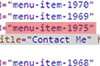
View your website in Chrome for example and right click on the menu item in question and choose “Inspect Element”. We’re looking for the “menu item id” so that’s “menu-item-1975” for my Contact Me menu item.

Menu Item Colour

You now need to add some new CSS to your theme’s stylesheet “style.css”. Add this line for a red highlight:

.menu-item-1975 a {color: #C30;}

or, to give a new background colour:

.menu-item-1975 a {background-color: #C30;}

Leon

How To Replace the Screen and LCD on a Samsung Galaxy S3

My wife’s Galaxy S3 got dropped a couple of times and the outer screen glass was badly cracked but the phone still worked fine. We got a few quotes to fix it locally, all well over €100 so I wondered about the possibility of fixing it myself cheaply seeing as I used to work in mobile repair & electronics centers. I got hold of a replacement glass screen for about €10 on eBay and sourced a few YouTube videos outlining the replacement process. Seemingly you could use a hairdryer to loosen the glue under the glass and it would peel off easily, HOWEVER, this is not what happened when I finally got around to trying it!

As I was heating up the glass and trying to prise it off with the tools provided in the replacement glass kit, the LCD underneath also came up and cracked into hundreds of different pieces rendering the phone useless and getting me into a spot of bother with the Mrs! My advice is to avoid trying this yourself as I doubt it’s possible to remove the glass without breaking the LCD unless you are a full repair center with proper equipment etc.

The phone after I finished trying to remove the outer glass with a hairdryer!

samsung1

I ended up having to buy a full LCD/Glass replacement part and managed to source one for €90 (RRP is about €130) off a guy on Adverts.ie. Here is the process involved in fitting it. Not too difficult if you like taking things apart and have ever messed with electronics:

Tools Required:

  1. Small Magnetic Phillips Screwdriver,
  2. Plastic lever – A guitar pick worked well for me,
  3. A metallic knife or blade to remove LCD,
  4. A Hairdryer to soften adhesive.

Step 1:

Remove Battery, SIM & Memory Card and loosen the screws holding the main protective back cover (in red). Both back cover parts need to be gently prised off after screws are removed as they are held in place with compression:

samsung2

Step 2:

Remove the remaining back cover around the speaker and camera (in red):

samsung3

Step 3:

Remove the Circuit Board connections show below. Use a plastic lever and be gentle! Lift off the circuit board when connections are free:

samsung4

Step 4:

Flip the phone over and remove the entire LCD from the area shown in red and as much of the adhesive residue as possible so that the new LCD can fit in comfortably. This is hard work and very messy. A hair dryer to loosen the adhesive and goggles to protect your eyes from shards of glass is recommended:

samsung5

Step 5:

Fit the new Screen/LCD assembly by passing the LCD Connector Ribbon through the slot in the casing (see pic above) and put the phone back together temporarily (minus screws) to test the new LCD. If all is well, disassemble once again and remove the green adhesive backing from the new LCD and fit in it’s place permanently:

samsung6

Step 6:

Reassemble the phone by reversing the above processes making sure everything fits snugly paying special attention to the circuit board connectors making sure they are fully engaged.

Here’s how the final phone looks with a new pink case added for good measure. A far cry from the first pic!? Marriage possibly saved..

samsung7

Leon

Plugin and Theme Fault Finding in WordPress

Just a quick tip or 2 to help troubleshoot faulty WordPress plugins and themes. If you have a major WordPress issue it’s usually always the fault of rogue plugins or themes and if you contact your hosting company or Google around for advice you’ll see a lot of people say deactivate and reactivate each plugin in turn to find the culprit. With around 50 plugins in my own site, that would take forever.

Tip 1 (Plugins):

If you have access to FTP or a hosting File Manager for your site go into the remote “wp-content” folder and change the name of the “Plugins” folder to “Plugins2” or similar. This will quickly deactivate ALL plugins and tell you whether your issue is with plugins at all or not. Reload the site with the plugins folder renamed and see if the issue persists. If it does then it’s not a plugin issue so go back and rename the plugins folder properly and the site will be as was.

If the issue is fixed then one of your plugins is acting up. Rather than go through them one by one, take groups of about 3 or 4 plugins and deactivate/reactivate them.

Tip 2 (Themes):

If the above doesn’t fix your issue then the problem might be with your theme. Try switching theme’s temporarily and switch to a well known and stable theme like WordPress’s own “Twenty Twelve”. The first thing I always do when it’s obvious the theme is at fault is go into the theme’s “Functions.php” file and make sure there’s no white space at the start or end of the files php code. After that I might go and see if there’s an updated version of the theme available.

Tip 3 (Error Reporting & Debugging):

If nothing else works you can try a bit of debugging by turning on WordPress’s own error reporting tool. You add the following line in the “wp-config.php” file in WordPress’s root directory:

define(‘WP_DEBUG’, true);

You can also enable php error reporting in your site’s root “.htaccess” file with the below code which puts the errors in a log file on your site rather than show them to the public:

php_flag log_errors on
php_value error_log /home/path/public_html/www.YourWebAddress.ie/PHP_errors.log

Leon

How to Target Multiple Countries Efficiently with Web Site SEO

When it comes time to think about expanding your market outside your own country you’ll need to be doing a bit of “International SEO” but it can be pretty tricky to target multiple countries at once. Probably the best way to do it would be to have a different website, web address and hosting for each country to be targeted and possibly different language translations too (auto translation wont cut it with Google!) but that’s a huge amount of work. Here’s a few quick tips on how to do it more efficiently.

Your Web Address:

Buying a few international versions of your main domain name is a must if for no other reason than to protect your ‘trademark’ so to speak. Concentrate on the large English speaking markets (if you are an English speaking business of course!) like the UK (.co.uk),  US (.com) and Australia (.au).

Your Hosting:

You should purchase hosting that has an IP address located in the country whose market you want to target foremost or the country in which your business is located. The domain TLD take precedence over the hosting IP location here so for example you can target the UK effectively with a .co.uk address while hosting in the US. Hosting IP location can be checked at Whois.sc.

Google Webmaster Tools:

Sign up for webmaster tools and add each domain name remembering to set the Geographic Target in Configuration – Settings. Google will attempt to do this for you based on the domain TLD/Extension.

301 Redirects:

So as to have only one website to maintain and market, pick a web address/country as the main site/market and redirect all other domains to this via a 301 redirect. You can then market each individual address in the respective country, ie market the .co.uk on UK located websites etc..