How to Update Gravity Forms on Multiple sites with InfiniteWP

I use the FREE InfiniteWP to update WordPress core and plugins across about 40 of my own and client’s websites. It’s a real time saver. It works perfectly with plugins hosted in the WordPress repository but I use a few commercial plugins not hosted there and it can’t update these. Gravity Forms for example is one I use across nearly all my sites and that can’t be updated automatically with InfiniteWP. They have assured me that they are working on a fix to allow auto updating of Gravity Forms but for now here’s a workaround suggested by InfiniteWP:

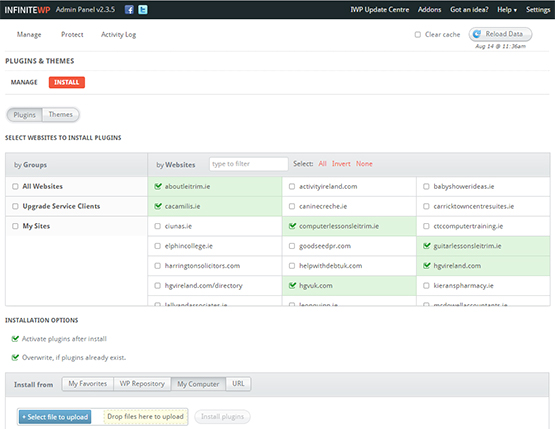
Login to your InfiniteWP admin and click “Plugins & Themes” under “Manage” top left. Then select “Install” and pick some sites to install the new/updated plugin into.

You can choose to install a plugin from the following sources:

  • WordPress Repository
  • Your Computer
  • Remote URL

I chose My Computer because Gravity Forms is hosted in a private account with login so I just logged in, downloaded the latest version and used that file.

There are further options you can tick including: Activate plugin after install” and “Overwrite if plugins already exist” which you’ll probably want to select if you’re updating an existing plugin.

Once you upload the file you can hit “Install Plugin”.

infinitewp

Leon

Photoshop Tip: Photo Preparation for Editing & Composition

I’ve been using Photoshop for over 10 years now. Version 6/7 was one of the first pieces of software I got hold of when I bought my first PC back in 2002 and I’ve been using it almost on a  daily basis ever since. My favorite kind of stuff to do in Photoshop is Composition & Editing, where you bring several photographic or even graphical elements together in one job and make it look like they were always meant to be together.

Typically each of my photo composition jobs follows the same process – I come up with some weird idea then go online to find the source files. Normally I just look in Google images for the best quality, hi-res images I can find. This can be a pain for 2 reasons:

  1. All images used in a composition need to match in terms of angle, lighting, levels, etc.. in order to give the best, most realistic results. It can be pretty hard finding these kind of matching files at a high enough quality and I usually end up doing a hell of a lot more editing or  compromising on something, even my initial idea just to suit the material available,
  2. Once you hit “Search Tools – Usage Rights – Labelled for reuse” in Google images results, the number of suitable images you’re allowed use decreases even more dramatically. Also, for the amount of compositions I do, buying suitable stock imagery is too expensive an option.

So what’s the best thing to do?

Even though it adds a lot of time to a Photoshop project, you can wipe out the above 2 problems pretty quickly by creating your own imagery. All you really need is an idea, a decent camera, a tripod, some free time and maybe some decent weather if it’s an outdoor shot. Creating your own shots obviously isn’t possible if you want to be working on fantasy stuff involving dragons etc but I find that if you Photoshop everyday situations, the resulting subtlety can actually impress a bit more then OTT stuff.

For example:

I was hanging around the house and garden with the kids over the weekend and a couple of ideas came to me so I grabbed all I had (Smart Phone Camera) and took a few shots of the girls as they played. For each shot I took, I asked them to move out of the frame and took another shot immediately after while trying to remain as still as possible. What this does is give me 2 fairly identical shots in terms of lighting and angle etc..with the only difference in both photos being the presence of the subject I planned to Photoshop. You then simply bring both photos into Photoshop and cut the subject out and place it in the second shot with no subject. It should blend in straight away with little further editing but you can move it around, resize, rotate etc without it looking too out of place..

Ideally, you’d plan the shot a bit more in advance than I did here, maybe having your subject pose in some special way then use a proper hi quality camera mounted on a tripod but it was a lazy, Sunday afternoon when I done all this so wasn’t in the humor of digging all the stuff out! There was a little bit of posing in the “Fairy” shot below as I asked Hanne to jump off that play frame to try capture her mid air. I then just resized her smaller and added some wings and a shadow! In the other pic I just snapped Ellie doing her thing then just made her bigger!

Even though there’s not much planning and I used a phone camera, I think the realness of the results are impressive?

More of my Photoshop stuff is on Pinterest.

Hanne-Angel

Ellie-Giant

Google Now Ranking SSL HTTPS sites Higher in Results

Well this has come at the right time for me! I’ve only recently switched my main site here over to HTTPS completely. As I was doing it I kind of hoped Google would at some stage think about ranking fully secure sites a bit higher in an effort to cut out poor or insecure sites from results but didn’t think they’d be so quick to implement it.

While being fully HTTPS isn’t a massive ranking factor at the minute, it may get more important over the next few years so I’d recommend getting a secure cert for your site now. Here’s the full Google announcement re HTTPS ranking:

http://www.googlewebmastercentral.blogspot.ch/2014/08/https-as-ranking-signal.html

I can help with the setup and a secure cert only costs about €15 per year.

Get in touch.

Leon

How To Change Currency Format in Gravity Forms

As great as the number one WordPress forms plugin is, Gravity Forms has one glaring omission – no front end settings for currency formatting. The default you’re stuck with it this:

100,00 € which is supposed to denote one hundred euros or €100. This can confuse some people who mistake it for one hundred thousand!

The only way to change it is by adding the following code to your themes “functions.php” file. This example is what you need to show currency in Euros with the € symbol on the left, a comma thousand separator and 2 decimal places:

add_filter( 'gform_currencies', 'update_currency' );
function update_currency( $currencies ) {
    $currencies['EUR'] = array(
        'name'               => __( 'Euro', 'gravityforms' ),
        'symbol_left'        => '€',
        'symbol_right'       => '',
        'symbol_padding'     => ' ',
        'thousand_separator' => ',',
        'decimal_separator'  => '.',
        'decimals'           => 2
    );
 
    return $currencies;
}

NB: making this change may change any existing prices you have on your form to thousands so you’ll need to go into each price and fix.

Fix Passthru System & Exec errors with WordPress Database Manager

I’ve been using WP Database Manager for years now. I reckon it’s the best WordPress Database management plugin. As well as backing up your database it handles automatic optimisation and repair of your database and you can set both that and the backup to run automatically on a schedule. Occasionally though it throws a wobbly. For example it was working fine for me for ages then all of a sudden started giving the following error on the “Backup DB” screen. Admittedly, it might have been due to me updating something on my VPS:

"Checking PHP Functions (passthru(), system() and exec()) ...
passthru() disabled.
system() disabled.
exec() disabled.

I'm sorry, your server administrator has disabled passthru(), system() and exec(), thus you cannot use this backup script. You may consider using the default WordPress database backup script instead."

The above error meant that database backups couldn’t run which rendered the plugin useless.

Here’s a quick fix:

Create a file called “php.ini” and upload it to your wordpress/website root folder. Add the following code to your existing .htaccess file and re-upload:

suPHP_ConfigPath /home/YOUR-ACCOUNT/public_html

order allow,deny
deny from all

Swap “YOUR-ACCOUNT for the username on your hosting account.

PS – The above fix might be considered a security risk for some shared hosting providers.

Leon

Anatomy of The Perfect Tweet

I was sitting watching the World cup semi-final last night between Brazil and Germany and checking out Twitter at the same time for reaction to events on the pitch. A most enjoyable experience was had by all! As you might know by now if you follow football, Brazil got hammered at home 1 : 7 and twitter could barely keep up. I’d only get a tweet out then another goal would go in (6 in 4 minutes from the Germans!?). I seen some great, great tweets and tried to add a few funny ones of my own but I just wasn’t in the same league as Colm Toibin who writes stuff for TV and is always wickedly funny.

During the game he tweeted this:

It was the standout tweet for me from the night and it currently has 358 RTs and 340 favorites. Here’s why I think that tweet was so great and what I think you need to do/be when creating any kind of viral content online:

Topical

Obviously the tweet was topical and of the moment. It helped that a large majority of the planet and twittersphere were all watching the same thing and watching the same news story unfold so there was a ready made audience for Colm.

Exceptional

It was no ordinary game of football. Brazil hadn’t lost at home for nearly 40 years and no one had ever scored that many goals against the opposing team in a semi-final of a world cup…ever. The sense of history being created led to a hunger in people for content, quotes, opinions of others, etc..

Funny

There were losts of humorous tweets on the night, many mashing up the football with the other big news story of the day in Ireland at least, that the 5 Garth Brooks gigs were cancelled. A lot of the same jokes were repeated. Colm’s humor, as usual was a bit different and on a higher level. What he done was basically repeat the same quote that many including TV panelists were making, ie – “This is the worst Brazil team since….” and added a different, more personal dimension. See below.

Personalise

A great many of us now 30, 40 or 50 somethings who played football out on the street as kids would have played “world cup” in which an individual kid or whole team would pretend to be a team from the world cup and pretend, best they could to emulate their style of play or moves they’d seen on the tv. Everyone always wanted to be Brazil of course! The tweet also refers back to a time when Brazil and football in general was a bit more classy. So there was a nice nostalgic feel.

HashTags

To make sure your tweet is included in the general discussion on a certain topic and gets the maximum amount of views, always remember to include a hash tag. Not too many. One should be fine. Colm included the official World cup tag #WorldCup2014.

So in general..be funny, be memorable, be better, be topical and you won’t go far wrong.

Leon